
User Guide
Chat Application Integration
Quickly import New API configurations into various AI chat applications
- New API supports quickly importing configurations into various AI chat applications, facilitating testing and daily use.
Chat Integration Methods
- New API offers three chat integration methods:
- One-click import of chat presets
- One-click import of API key configurations
- Manually configure chat applications
Preparation Before Use
- Log in to New API and create a key on the 'API Key' page.
- Ensure the key is enabled, has sufficient quota, is not expired, and that current IP, group, and model restrictions allow the call.
For detailed steps on creating and using API keys, please refer to the API Key page.
One-click Import of Chat Presets
- Click 'Chat' in the left sidebar to expand the platform's configured chat presets.
- Click the target chat preset.
- The browser will attempt to launch the installed external application in a new window.
- The system automatically jumps to the target application and populates the configuration information.
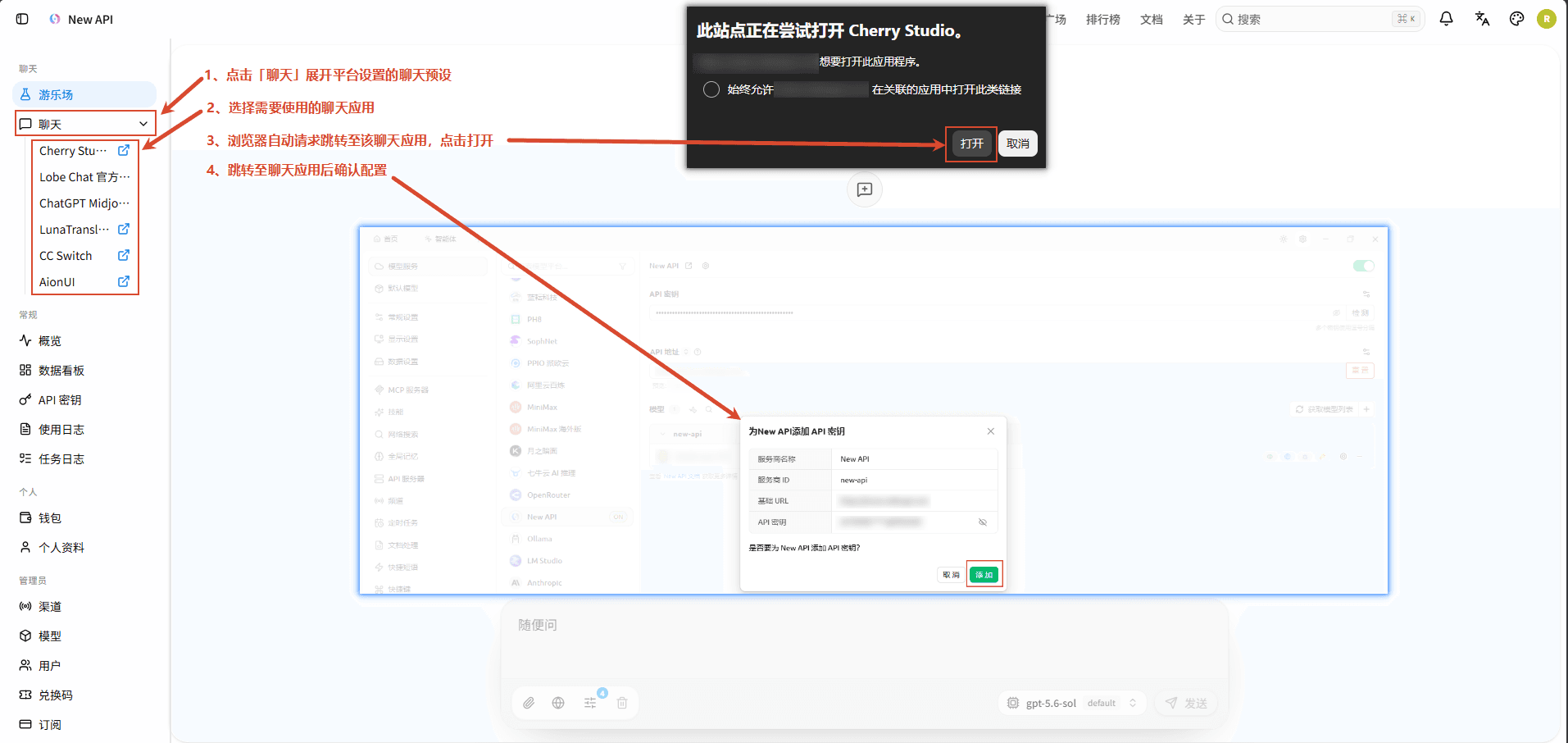
Root users can maintain and manage chat presets in 'System Settings' → 'Console Content' → 'Chat'.
One-click Import of API Key Configurations
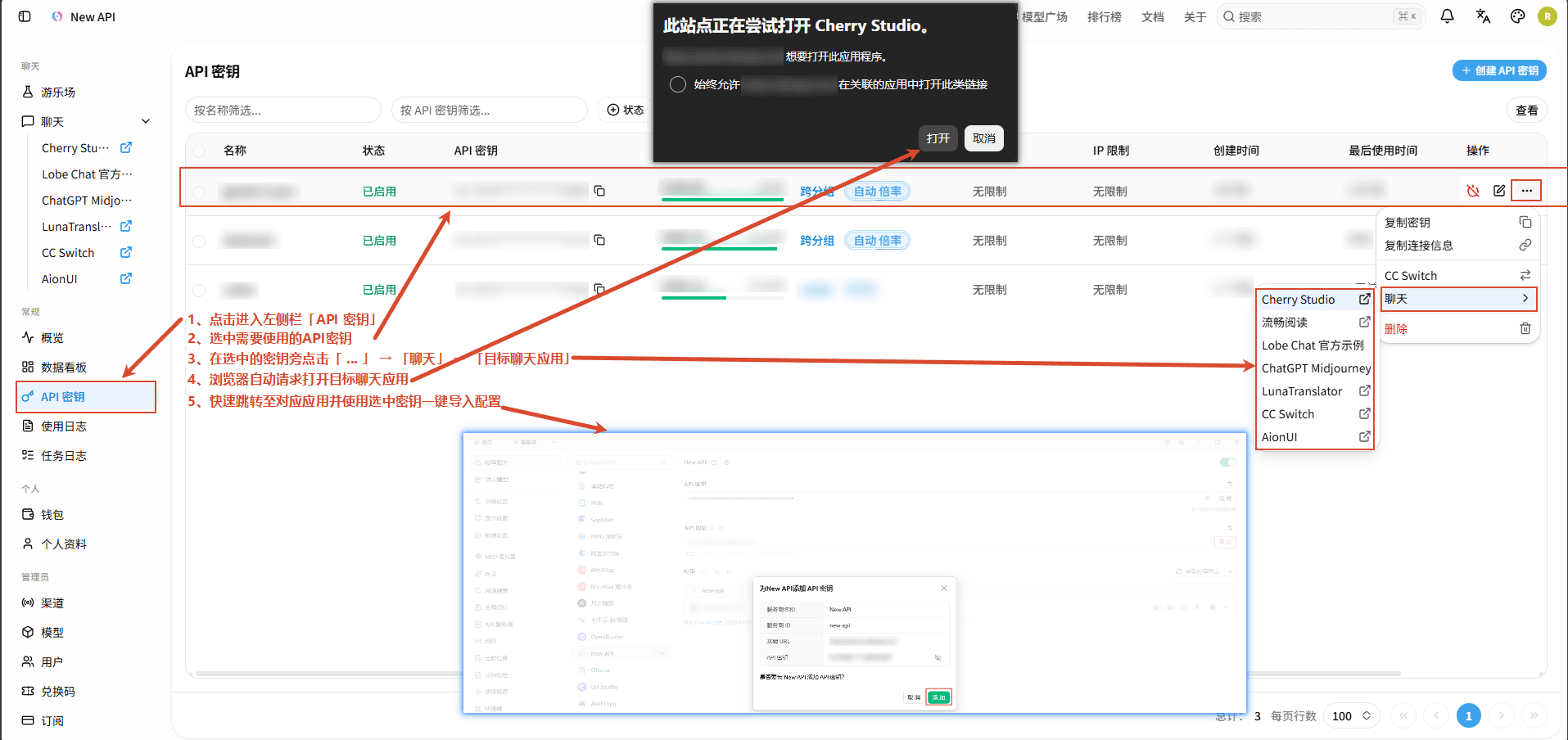
- Click to enter 'API Key' in the left sidebar.
- Select the API key to use.
- Next to the selected key, click '...' → 'Chat' → 'Target Chat Application'.
- Quickly jump to the corresponding application and use the selected key to import the configuration with one click.
Manually Configure Chat Applications
For applications that do not support one-click import, you can configure them manually:
- Obtain the following configuration information from New API:
| Configuration Item | Description | Location to Obtain |
|---|---|---|
| API Base URL | API Endpoint Address | New API address, e.g., https://api.example.com/v1 |
| API Key | API Key | API Key page |
| Available Models | List of supported models | Filter and view available models under the key's group in the Model Marketplace |
- General Configuration Steps
- In the target application, find the 'Settings' or 'Configuration' entry.
- Locate the 'Custom API' or 'OpenAI Compatible Interface' configuration area.
- Fill in the API Base URL and API Key.
- Save the configuration to start using it.
- Most applications supporting OpenAI API compatible interfaces can integrate with New API by filling in a custom API address.
- If the application requires a full endpoint, use
https://api.example.com/v1/chat/completions; refer to the application's specific configuration instructions to supplement the path. - For a list of currently verified supported AI applications and configuration guides, please refer to the AI Applications page.
Frequently Asked Questions
- No chat presets in the sidebar: Confirm that the 'Chat' module is enabled in 'Profile' → 'Left Sidebar Personal Settings'.
- No available key prompt: Create or enable an API key, and check the quota, expiration time, model restrictions, and IP whitelist.
- Desktop application not launching: First, install the target application and confirm that the operating system has registered the corresponding custom protocol; the browser may also ask for confirmation to open an external application.
- Web preset blank or refused to load: The target site might prohibit iframes via CSP or
X-Frame-Options. In this case, switch to manual configuration for that application. - FluentRead key invalid after connection: Confirm that the extension is installed and active on the current page; the current version might have key prefix compatibility differences, if it still fails, switch to manual configuration or another preset.
- Request returns unauthorized or forbidden access: Check the authentication header format, model name, key status, group permissions, and IP restrictions; for Claude and Gemini requests, also confirm that the correct paths and request headers are used.
How is this guide?
Last updated on
Using API and Playground
Use the playground to test and experience AI models online, and call New API via OpenAI-compatible interfaces.
Model Marketplace and Leaderboard
Browse pricing information and status of AI models enabled on the platform; view usage rankings and trends of platform models and providers.