
Registration and Login
Supports account registration, forgotten password reset, account password login, and one-click login with Passkey and various third-party OAuth providers.
Supports account registration, forgotten password reset, account password login, and one-click login with Passkey and various third-party OAuth providers. Please complete registration before your first use.
Login
Account Password Login
- Open the platform homepage, click the "Login" button in the top right corner, or directly visit
/sign-in. - Enter your username or email and password.
- If Cloudflare Turnstile is displayed on the page, you need to complete the human verification.
- First, click to confirm you have read and agree to the user agreement and privacy policy, then click "Login".
- When 2FA is enabled for the account, login will additionally require entering a one-time verification code or backup code.
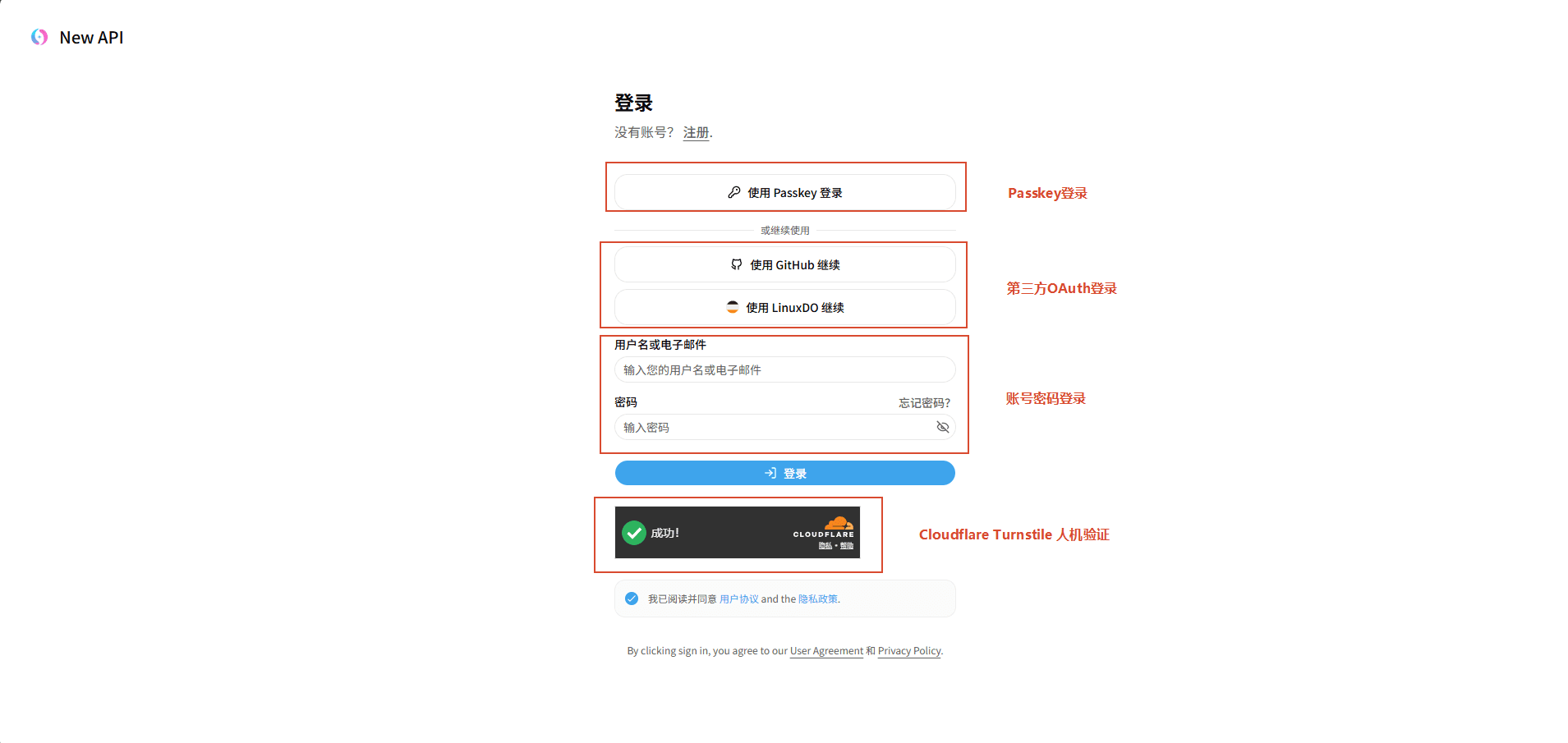
Passkey and Third-Party OAuth Login
The login page will display icons for third-party platforms such as GitHub, Discord, LinuxDO, or Passkey, which are enabled by the platform. To log in using a third-party account or Passkey:
- Click to confirm you have read and agree to the user agreement and privacy policy.
- Click the icon of the corresponding platform (GitHub, Discord, LinuxDO, etc.) or the Passkey icon at the bottom of the page.
- When using a third-party account, you will be redirected to the third-party authorization page to complete authorization; when using Passkey, complete verification as prompted by your browser or device.
Passkey and third-party OAuth login methods, as well as whether human verification is enabled, are configured by the platform's super administrator (Root) in "System Settings" → "Authentication". Disabled methods will not appear on the login page.
Registration
Registration Process
- On the login page, click "Register", or directly visit
/sign-up. - Fill in your username, password, and confirm password.
- If platform settings require email verification, enter your email, send the verification code, and input the received code.
- If Cloudflare Turnstile is enabled on the platform, you need to complete the human verification.
- First, click to confirm you have read and agree to the user agreement and privacy policy, then click "Create Account" to complete registration.
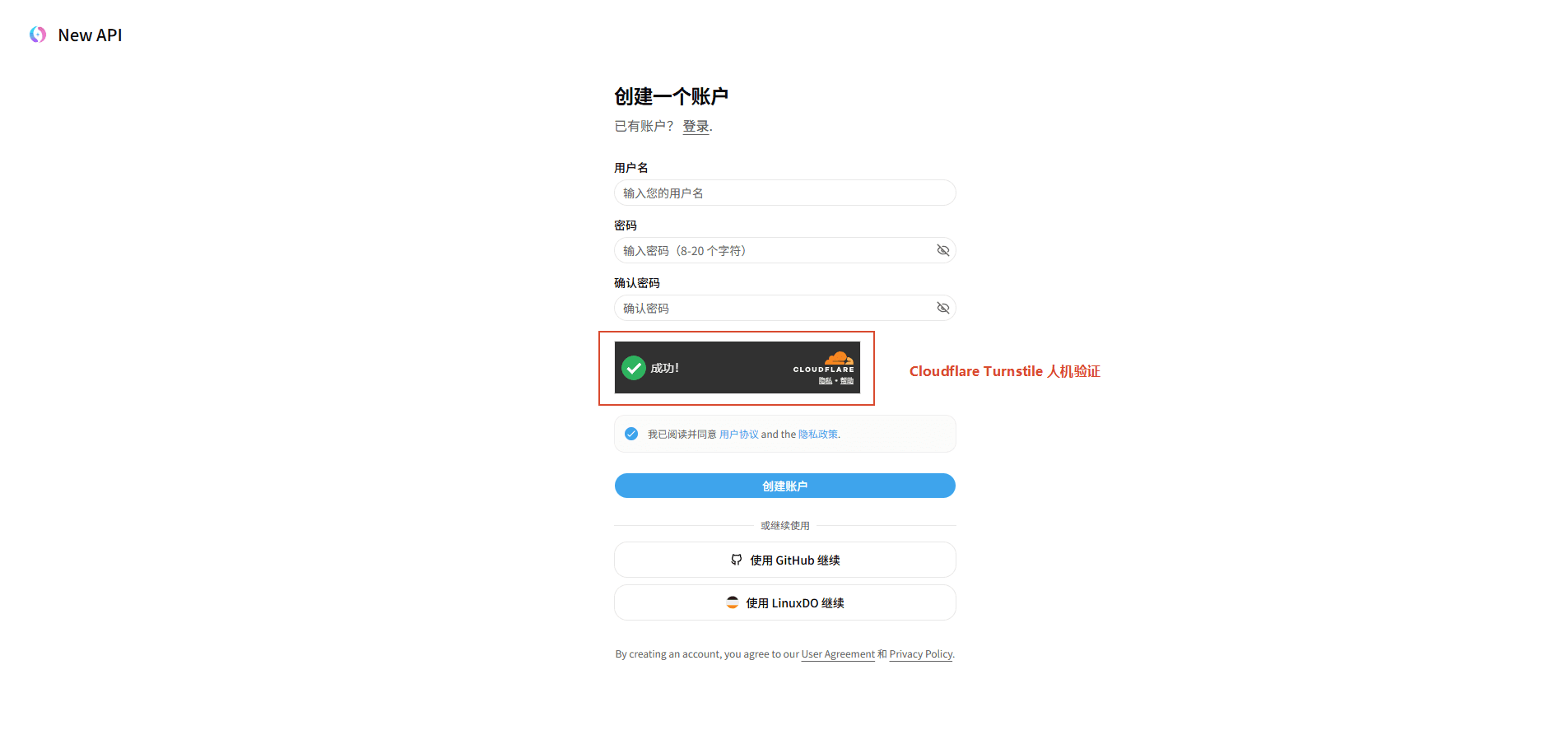
Whether password registration, OAuth registration, email verification, and email domain/alias restrictions are allowed is determined by the Root's authentication settings.
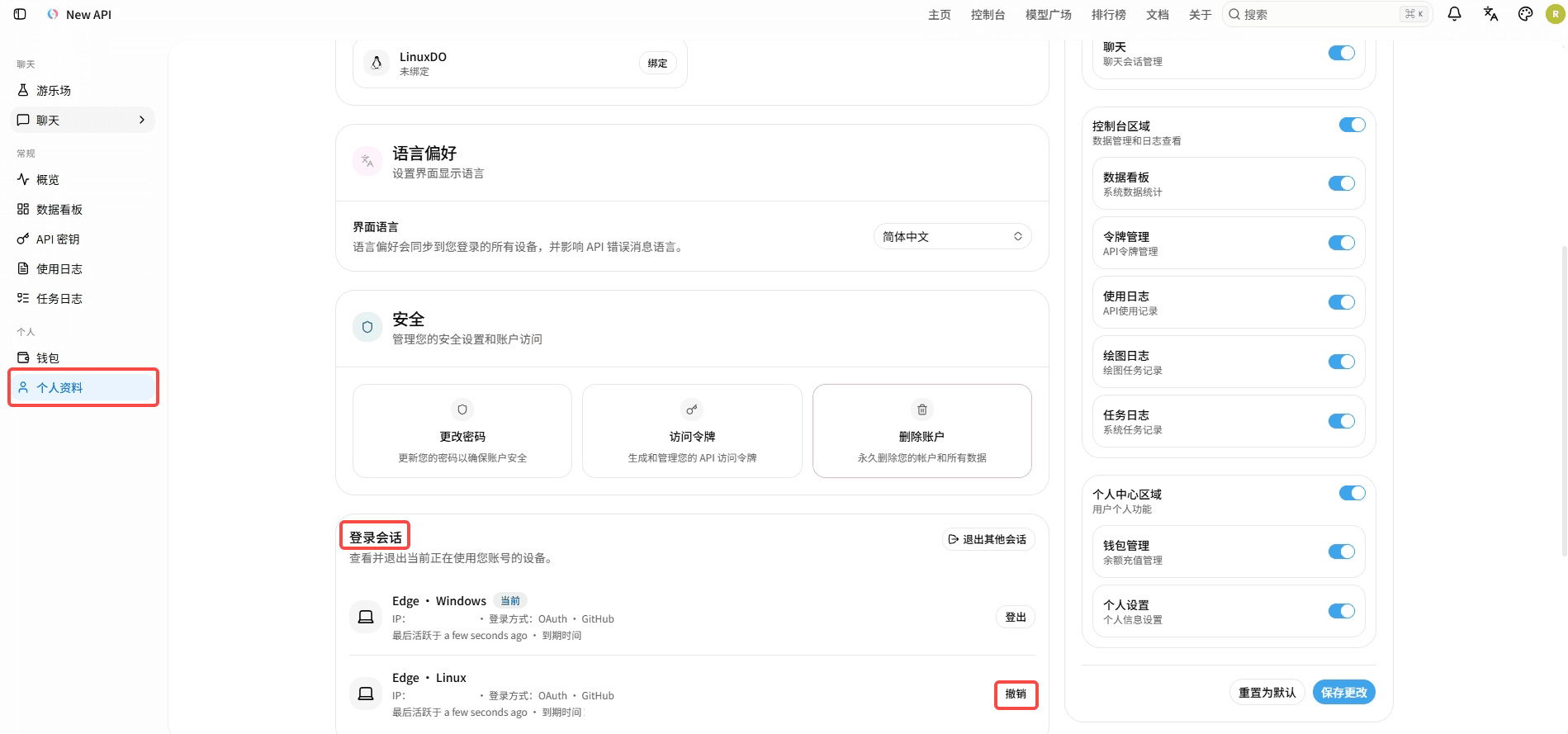
Login Session Management
Upon successful login, an independent session will be established. Logged-in users can click "Profile" → "Login Sessions" in the left sidebar to view current login sessions with other devices, revoke individual sessions, or log out of all other sessions at once; revoking the current session will return you to the login page.
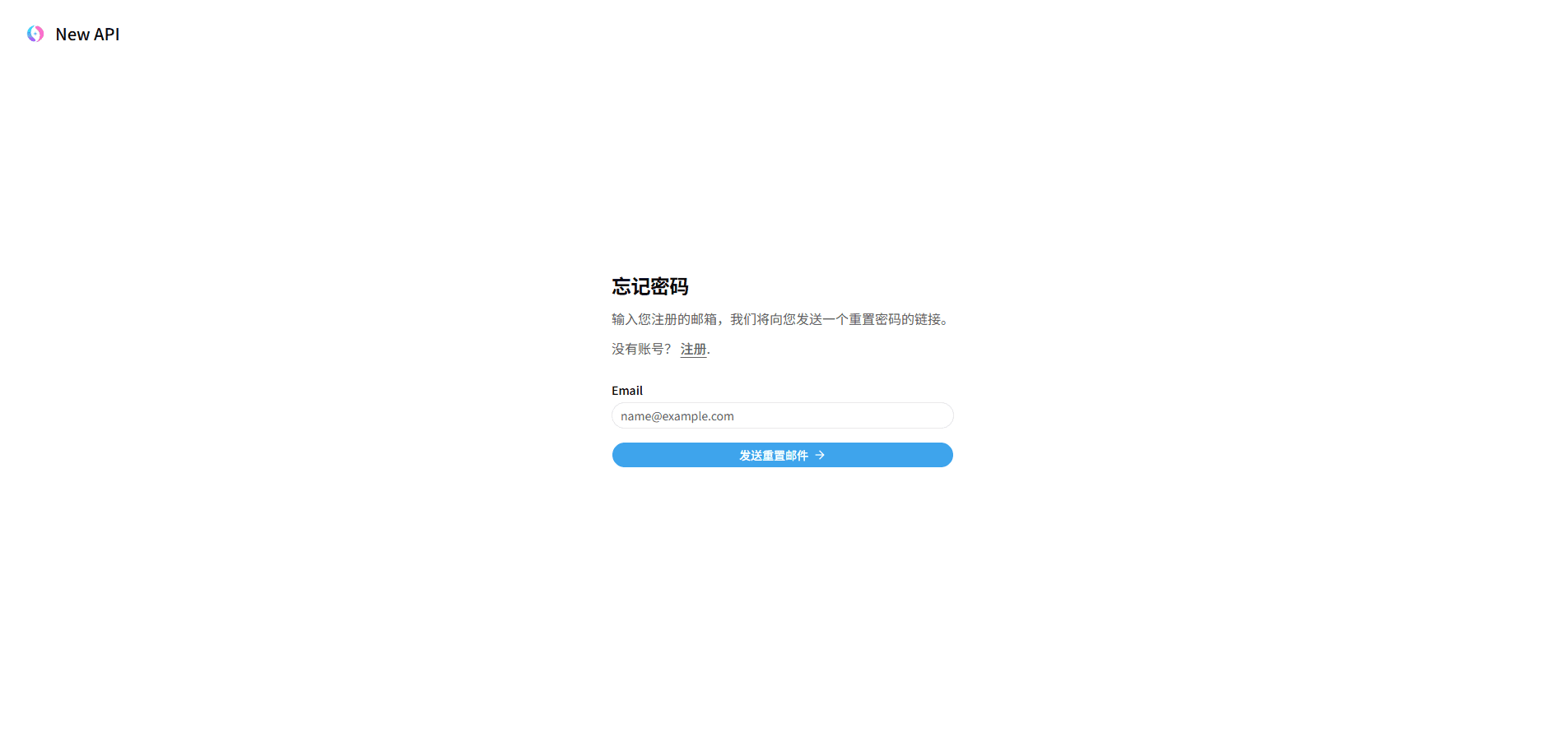
Forgot Password Reset
- On the login page, click "Forgot Password".
- Enter the email associated with your account and submit.
- Open the reset link sent by the system.
- Set a new password on the reset page, then log in again.
How is this guide?
Last updated on
Feature Guide Overview
New API feature guide, organized into User Guide and Admin Guide.
Profile and Security
View or manage account information, binding details, notification and behavior preferences, security settings, 2FA management, Passkey management, login session management, and other personal settings.