
Wallet and Subscriptions
View and manage balance, top-ups, redemption codes, invitation rewards, and subscription plans.
After logging in, click 'Wallet' in the left navigation bar, or directly visit /wallet to access the wallet page. The wallet page centrally provides functionalities such as balance statistics, online top-ups, redemption codes, order history, subscription plans, my subscriptions, and invitation rewards. The specific displayed areas, amounts, payment methods, and plan contents are determined by platform configuration.
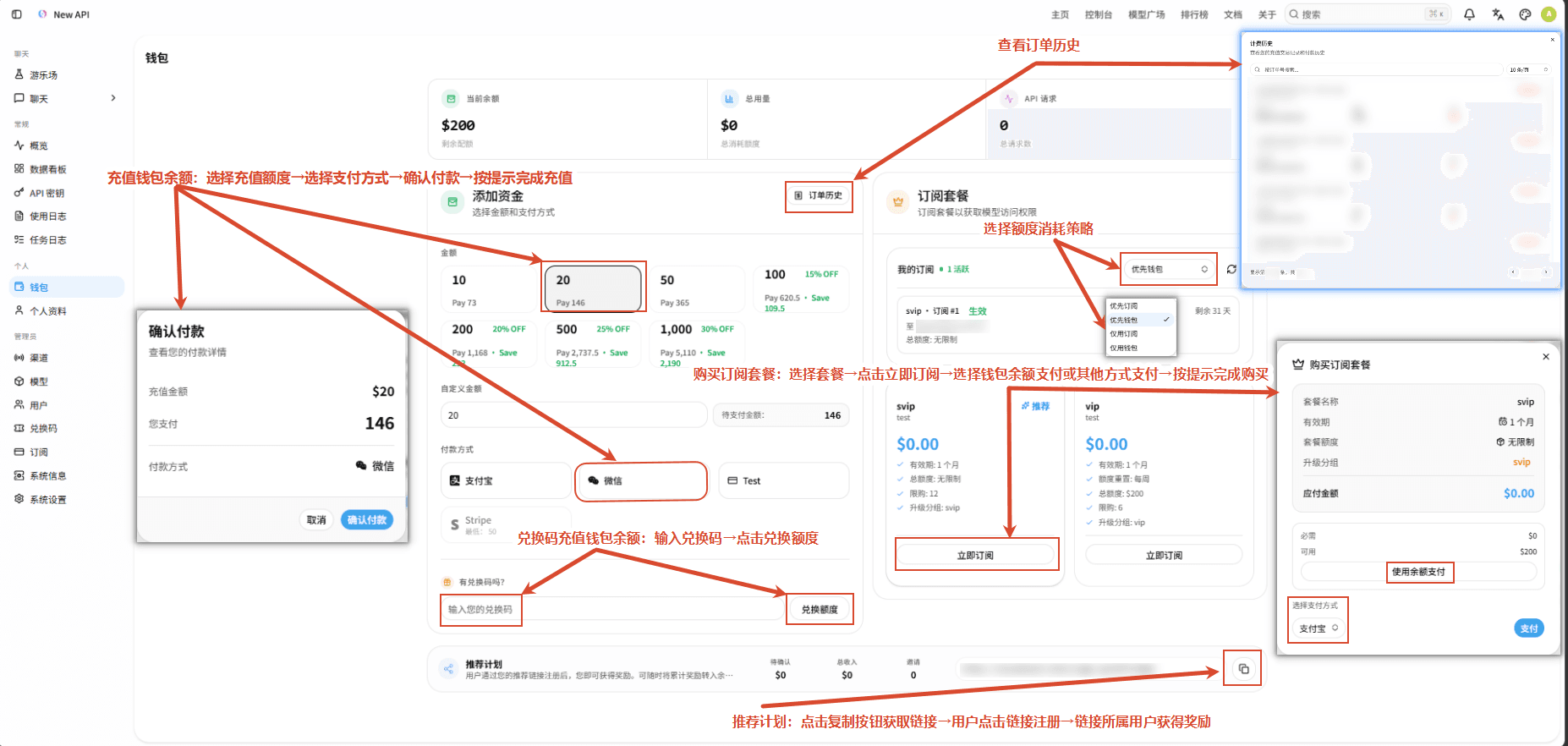
View Balance and Usage
The wallet statistics area includes the following information:
- Current Balance: Internal quota available for model calls or other billing operations, not a cash balance.
- Accumulated Consumption: The quota historically used by the account.
- API Requests: The number of API requests initiated by the account.
- The display units for balance and usage are determined by the currency and quota display rules configured by Root in 'System Settings' → 'Billing and Payments'.
- Do not infer fixed exchange rates based on symbols or values on the page; actual deductions are also affected by model, group, channel, and instance billing rules.
Online Top-up
If the platform has enabled online payments, the top-up area of the wallet will display available top-up options. Top-up amounts, preset amounts, minimum top-up amounts, discounts, and exchange rates are all determined by platform configuration.
- In the 'Top-up' area, select a preset amount provided on the page, or enter a custom amount.
- View the top-up quota and payable amount calculated by the system.
- Select the payment method provided by the current platform.
- In the confirmation window, verify the top-up quota, payable amount, discount, and payment method.
- After confirmation, you will be redirected to the third-party payment page to complete the payment.
- After payment is complete, return to the wallet and wait for the order status and balance to update.
- The project code supports payment gateways such as EPay, Stripe, Creem, Waffo, and Waffo Pancake, but only enabled, fully configured, and currently available payment methods will be displayed. Different gateways may also have additional amount or payment restrictions; please refer to the page prompts. If no payment methods are available, please contact the platform administrator.
- Successful payment requires a third-party payment callback to confirm the order; the balance may not update immediately after payment. If payment is successful but the balance has not changed, please keep the order number and contact the administrator; do not make duplicate payments.
- Payment methods, minimum top-up amounts, discounts, exchange rates, and preset amounts are not fixed values for New API; you cannot infer the rules of the current instance based on other instances or example pages.
Redemption Codes
When redemption codes are available, the top-up area will display a redemption code input field; if the administrator has configured a redemption code acquisition address, the page will also display a corresponding external link.
- Locate the 'Redemption Code' input field in the top-up area.
- Enter the redemption code provided by the administrator.
- Click 'Redeem', wait for the result prompt, and refresh your balance.
- Redemption codes must meet the validity period and usage rules configured by the platform, and be enabled and unused. Each redemption code can only be successfully used once.
- If redemption fails, the page may not display specific reasons such as 'already used', 'expired', or 'does not exist'. Please check if the redemption code is complete and confirm its status with the administrator.
- If the platform has not completed the relevant payment compliance configuration, redemption code input and redemption operations will be disabled, and the page will display a corresponding prompt.
Subscription Plans
Subscription plans are located in the subscription area of the wallet page. Only plans that are enabled and have passed payment compliance checks on the current platform will be returned and displayed by the API; if no plans are available, the subscription area will not be displayed.
The plan card includes the following information:
| Item | Description |
|---|---|
| Title and Subtitle | The name and description set by the administrator for the plan. |
| Price | The amount required to purchase the plan; the specific value is determined by instance configuration. |
| Validity Period | Can be configured by year, month, day, hour, or custom duration (seconds). |
| Total Quota | The subscription quota included in the plan; configured as 0 means unlimited total quota. |
| Quota Reset | Can be configured as no reset, daily, weekly, monthly, or custom cycle. |
| Purchase Limit | Limits the number of times the same user can purchase; configured as 0 means no limit. |
| Upgrade Group | May switch to the administrator-configured group after a successful purchase. |
| Downgrade Group | May switch to the administrator-configured group after the subscription expires; if not set, only if switched via an upgrade group during purchase and still in that group upon expiration, will it usually revert to the pre-purchase group. |
'Unlimited Total Quota' only means that the subscription itself does not set a total quota limit, and does not imply unlimited calls. Requests are still subject to model, routing, group, and billing rules.
Purchasing a Subscription Plan
- Open the subscription area of the wallet page.
- Select a plan and view its validity period, quota, reset cycle, and purchase limits.
- Select the purchase method displayed on the page.
- After verifying the order information, complete the balance deduction or third-party payment.
- When using third-party payment, return to the wallet and wait for the payment callback; confirm whether the subscription is active after the status updates.
Available purchase methods depend on the global payment gateway and the plan's own configuration, and may include:
- Wallet Balance: Available when the plan allows balance payment and the account balance is sufficient. The deducted quota is calculated as 'Plan Price ×
QuotaPerUnit' and rounded up; the specific unit is determined by platform configuration. - EPay: Requires the platform to enable EPay payment, and the current payment configuration must be available.
- Stripe, Creem, or Waffo Pancake: In addition to the global gateway being available, the plan must also be configured with the corresponding payment product.
When the regular Waffo payment method is used for online top-ups, it does not mean it supports subscription purchases. The purchase button may be disabled or the operation may fail if the user purchase limit is reached, the plan is deactivated, the payment method is unavailable, or the balance is insufficient.
Viewing Subscription Status
The 'My Subscriptions' area displays current and historical subscription statuses, common statuses include:
- Active: The subscription is active. The page will display remaining days and end time; if the next reset time is configured, it will also be displayed; for limited quota subscriptions, total quota, used quota, remaining quota, and usage progress will also be shown.
- Expired: The subscription has expired and the subscription quota can no longer be used.
- Cancelled: The subscription has been canceled or invalidated prematurely. There is no self-service cancellation entry on the user side; this status is usually generated by administrator operations.
- After the quota reset time is reached, the used quota for limited quota subscriptions will be cleared, and a new quota cycle will begin. If the next reset time has already passed the subscription end time, that reset will not be set.
- The group after subscription expiration is determined by the plan configuration: if a downgrade group is set, it will usually switch to that group; if not set, only if switched via an upgrade group during purchase and still in that upgrade group upon expiration, will it usually revert to the pre-purchase group. If no upgrade occurred, or if there are other active upgrade subscriptions in the account, the current group may be maintained; the final group will be processed in conjunction with other subscription statuses.
- There is currently no auto-renewal feature for subscription plans. If you wish to continue using a subscription after it expires, please repurchase the plan.
Selecting Billing Preference
The wallet page allows selecting the quota deduction order for requests. After saving preferences, the backend will process according to the following rules:
| Billing Preference | Deduction Rule |
|---|---|
| Prioritize Subscription | Deduct from active subscriptions first; if subscription quota is insufficient, the wallet will only be used if all active subscriptions allow fallback to the wallet. Use the wallet if there are no active subscriptions. |
| Prioritize Wallet | Deduct from the wallet first; if wallet balance is insufficient, then attempt to use subscriptions. |
| Subscription Only | Use subscriptions only. If there are no active subscriptions or subscription quota is insufficient, the request fails and will not switch to the wallet. |
| Wallet Only | Use the wallet only. If the balance is insufficient, the request fails and will not use subscriptions. |
The plan's 'Wallet Overflow Fallback' rule affects the 'Prioritize Subscription' result: if even one active subscription prohibits fallback, the wallet cannot be used when subscription quota is insufficient. When there are no active subscriptions, the 'Prioritize Subscription' and 'Subscription Only' options will be disabled on the page.
Invitation Rewards
The invitation rewards area of the wallet page displays the invitation link, pending rewards, historical accumulated rewards, and number of invitees. The invitation code is embedded in the aff parameter of the invitation link; the link format is:
当前站点地址/sign-up?aff=<邀请码>Usage process:
- Copy the invitation link in the invitation rewards area.
- Send the link to new users, who can register an account through the link; some new user registrations via account password registration and OAuth state processes will read this parameter, while independent login processes like WeChat and Telegram are not applicable.
- After meeting the invitation conditions configured by the platform, rewards will be distributed according to the rules.
- The inviter's rewards usually first enter pending rewards; once the rewards meet the transfer conditions, click 'Transfer to Balance' to add them to the main balance.
- The invited user's rewards (if enabled by the platform) will be directly added to their account quota; the inviter's rewards usually first enter pending rewards.
- The amount, distribution conditions, and minimum transfer amount for invitation rewards are determined by platform configuration.
- Transferring to balance supports partial transfers, but cannot exceed the current pending rewards, and cannot be less than the platform's quota unit requirements; this is not a cash withdrawal, refund, or withdrawal application.
- If payment compliance status requirements are not met, rewards may not be issued, and the 'Transfer to Balance' operation may also be unavailable.
- Invalid invitation codes will not prevent registration, and registered users will not receive rewards again for repeatedly using invitation codes.
Order History
- Click 'Order History' in the top right corner of the top-up card to view top-up and payment order records.
- The page supports searching by order number and pagination, and displays order number, creation time, payment method, top-up quota or amount, payment amount, and order status.
- Regular users can only query their records from the last 30 days; search criteria only match order numbers.
- This list is primarily for viewing top-up and payment orders and does not guarantee coverage of all subscription orders.
Common Restrictions
The following situations may lead to wallet or subscription-related features being unavailable:
- The platform has not configured payment gateways or payment products, resulting in no available payment methods or subscription plans.
- Payment compliance status requirements have not yet been met, leading to unavailable payment methods or subscription plans, and redemption code operations being displayed as disabled.
- The top-up amount is below the minimum amount required by the platform or gateway.
- Insufficient balance, deactivated plan, or reached personal purchase limit.
- Third-party payment callback has not yet completed, and the order is still being processed.
If payment is successful but the order or balance has not been updated for a long time, please keep the order number, payment proof, and time of occurrence, contact the platform administrator for verification, and do not make duplicate payments.
How is this guide?
Last updated on